

Manage Your Shop with AI (MCP)
Beyond the built-in Buddy, Orderain has an MCP server that lets you connect outside AI assistants like Claude, ChatGPT, Grok, or Cursor directly to your shop. Once connected, you manage your store from your AI assistant using plain language — no code required.
What you can do
With an AI assistant connected through MCP, you can ask it to:
- View your data. For example "list my shop products" or "show my recent orders".
- Manage your store. Update products, orders, inventory, and more from a chat.
- Change your design. For example "redesign my homepage hero section" or "update the footer links".
How it works
Setting up MCP takes just a few steps, all from your shop's Headless settings:
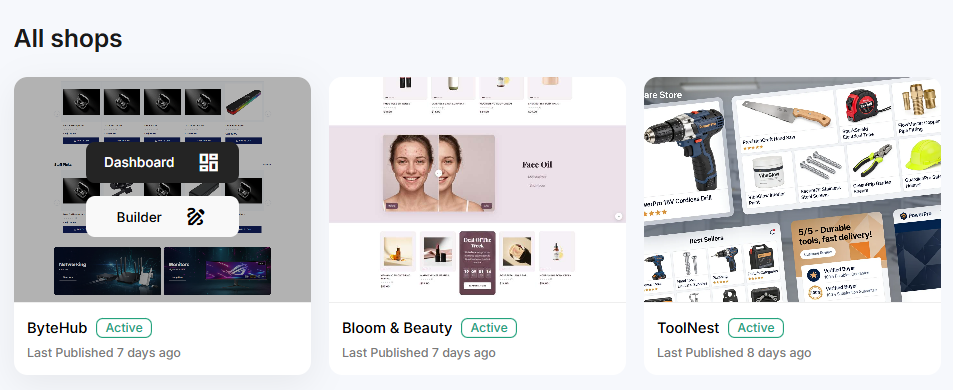
Open your shop's Dashboard
From All Shops, hover over your shop's card and click Dashboard.
Go to Settings → Headless
In the Dashboard, click Settings at the bottom of the left sidebar, then select the Headless tab.
Create a new token
In the API Tokens section, click + Create New Token to open the Create API Token dialog.
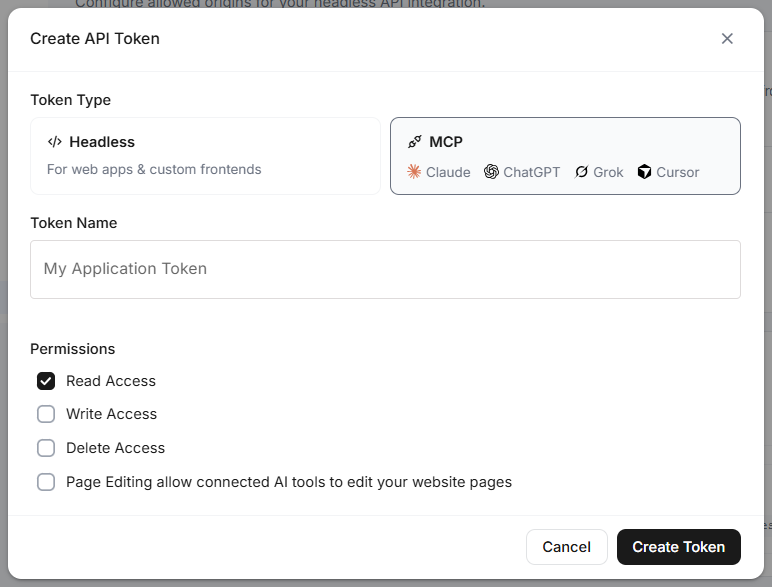
Choose the MCP token type
Under Token Type, select MCP (it lists Claude, ChatGPT, Grok, and Cursor). Enter a Token Name, tick the Permissions it needs, then click Create Token.
Copy the MCP Connection URL
The Token Created Successfully dialog shows your MCP Connection URL (with the token already in it), plus your Token ID and Shop ID. Click the copy icon to copy the URL — you won't be able to see it again — then click I've Saved My Token.
Connect your AI assistant
In Claude, ChatGPT, Grok, or Cursor, add a custom connector and paste the MCP Connection URL. Then ask it to do things like "list my shop products". See the per-assistant steps below.
The MCP connection URL
Every assistant connects using the same MCP Server URL:
https://mcp.orderain.com/mcp
It needs an API token to authenticate. The easiest way is to copy the ready-made URL from the Token Created Successfully dialog (it already includes your token):
https://mcp.orderain.com/mcp?token=YOUR_TOKEN
Connecting each assistant
The steps below all use the same MCP URL and token — only the setup screens differ per app.
Connecting Claude
Open connector settings
Open Claude → Settings → Connectors.
Add a custom connector
Click Add custom connector.
Set the name and URL
Set the Name to Orderain and paste the MCP URL (with your token in it) as the
URL.
Finish
Leave the OAuth fields empty and click Add. The Orderain tools appear in a new chat.
Try it
Ask something like "list my shop products" or "show my recent orders".
Connecting ChatGPT
Turn on Developer mode
Open ChatGPT → Settings → Security & login, scroll down, and turn on Developer mode.
Add a new plugin
In the left sidebar, click Plugins, then click the + icon (top right) to add a new plugin.
Name it
Set the Name to Orderain (or anything you like). The description and icon are
optional.
Paste the connection URL
Under Connection, paste your MCP Server URL (token included).
Create
Set Authentication to No Auth, tick "I understand and want to continue", then click Create.
Try it in ChatGPT
Ask ChatGPT to "list my Orderain products".
Connecting Grok
Open Skills and Connectors
Open Grok and click Skills and Connectors in the left sidebar.
Start a new connector
Switch to the Connectors tab, then click New Connector (top right).
Choose Custom
Choose Custom — "Add your own custom connector".
Set the name and Server URL
Set the Name to Orderain and paste your MCP URL (token included) as the
Server URL.
Add it
Click Add Connector. Then ask Grok to "show my Orderain orders" or "list my products".
Connecting Cursor
Open the Cursor app
Open the Cursor app. (MCP is only available in the desktop app, not the browser.)
Open the MCPs tab
Click Customize in the left sidebar, then open the MCPs tab.
Add a new MCP server
Click + New MCP Server — this opens the mcp.json file for editing.
Paste the config
Paste the following, with your token in the URL:
{
  "mcpServers": {
    "orderain": {
      "url": "https://mcp.orderain.com/mcp?token=YOUR_TOKEN"
    }
  }
}
Save
Press Ctrl + S to save. Cursor lists the Orderain tools; use them from the chat.